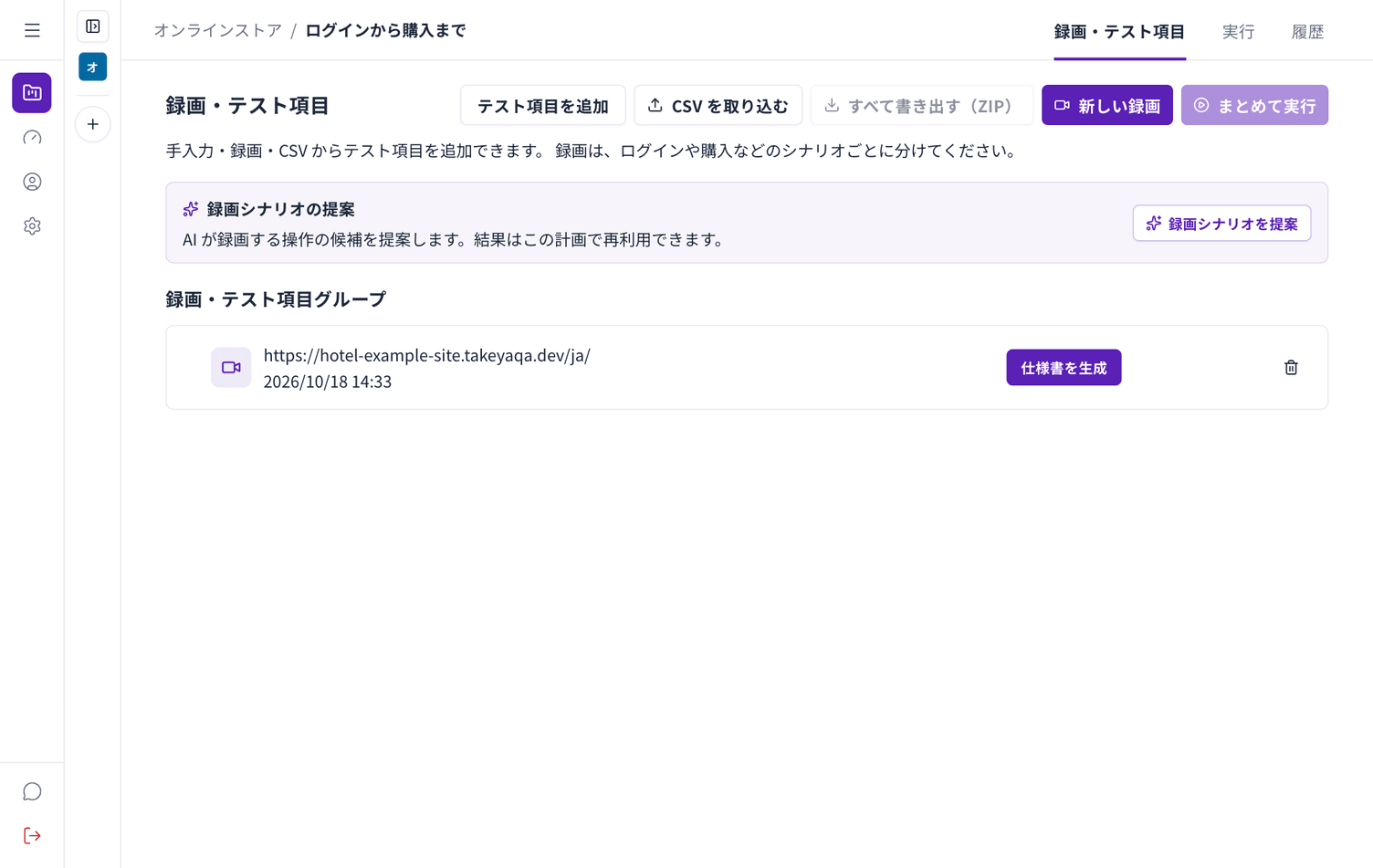

Record
Starting
Section titled “Starting”- Enter the URL you want to record, starting with
https:// - Choose Start recording
- A separate Incognito window opens. Work in that window
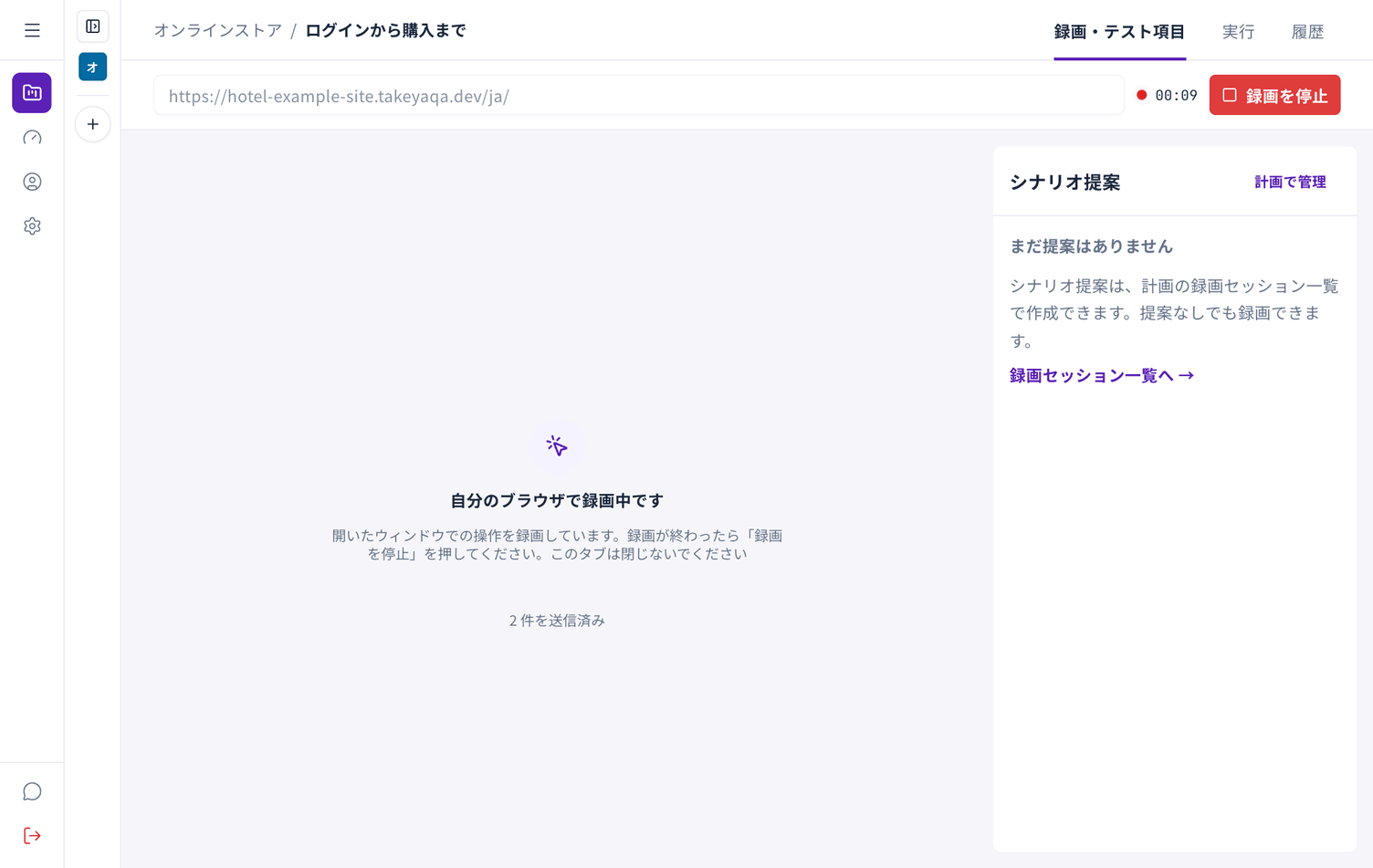
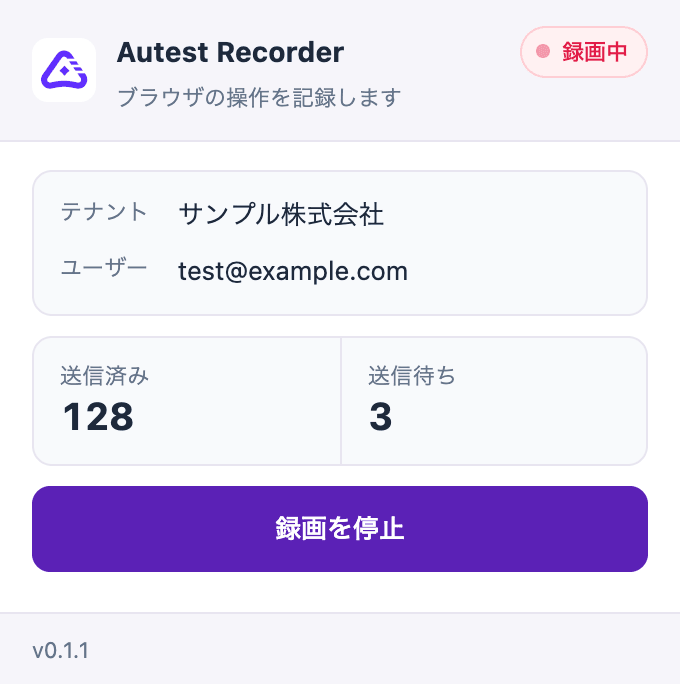
Autest shows “Recording in your browser” and the sent count goes up. You can also see the count from the Autest icon at the top right of Chrome.
Use the window that opened.
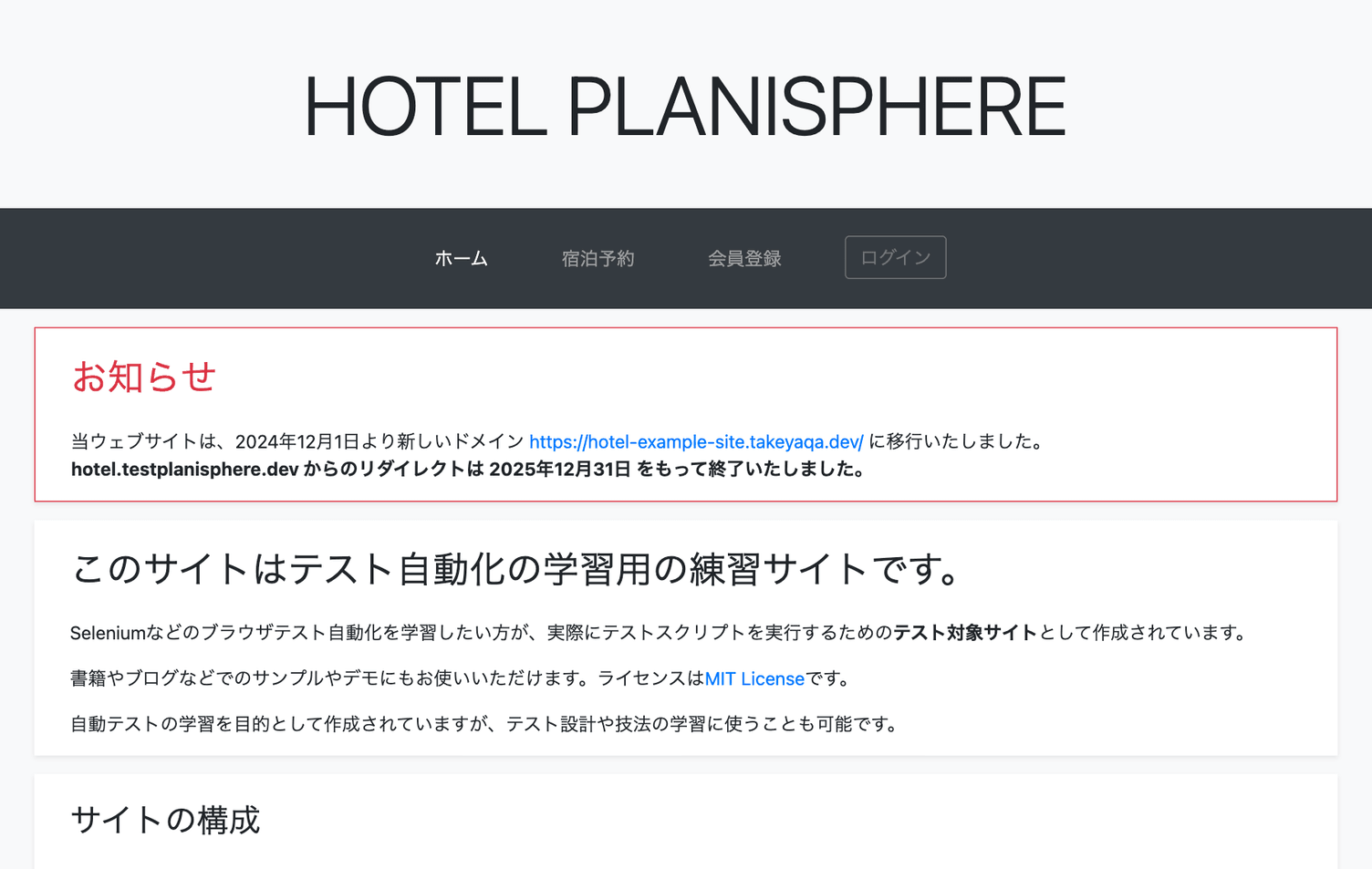
What you type in it is recorded too.
While recording
Section titled “While recording”- Keep one recording to one scenario. Combining several means only some test cases get created
- Only the first tab is recorded. If a link opens in a new tab, what you do there is not captured
- If the connection drops for more than 3 minutes the recording is lost. That means your computer slept, Chrome quit, or the network went down. Simply looking at a screen without acting is fine
- One recording is limited to 64 MB. Long recordings hit the limit and cannot be saved
Stopping
Section titled “Stopping”Go back to the Autest tab and choose Stop recording. You can also stop from the Autest icon at the top right of Chrome.
If you closed the Autest tab, stop it from the Autest icon.
Closing the recording window yourself also ends the recording, and what you did up to that point is saved.
After stopping
Section titled “After stopping”| What you see | Meaning | What to do |
|---|---|---|
| “Recording saved (N events)” | Saved | Generate a specification |
| The button changed to Go to specification | The recording had already ended | Choose it to save |
| “Could not save the recording” | Not saved | Choose Back to recording and stop again |
Once saved you return to the recording list.