

Generate a specification
A specification is the write-up Autest builds from your recording: the role of each screen, the flow of steps, the input fields and the expected results.
Generating one
Section titled “Generating one”- Open the Recordings and test cases tab of a test plan
- Choose Generate specification on the recording you want
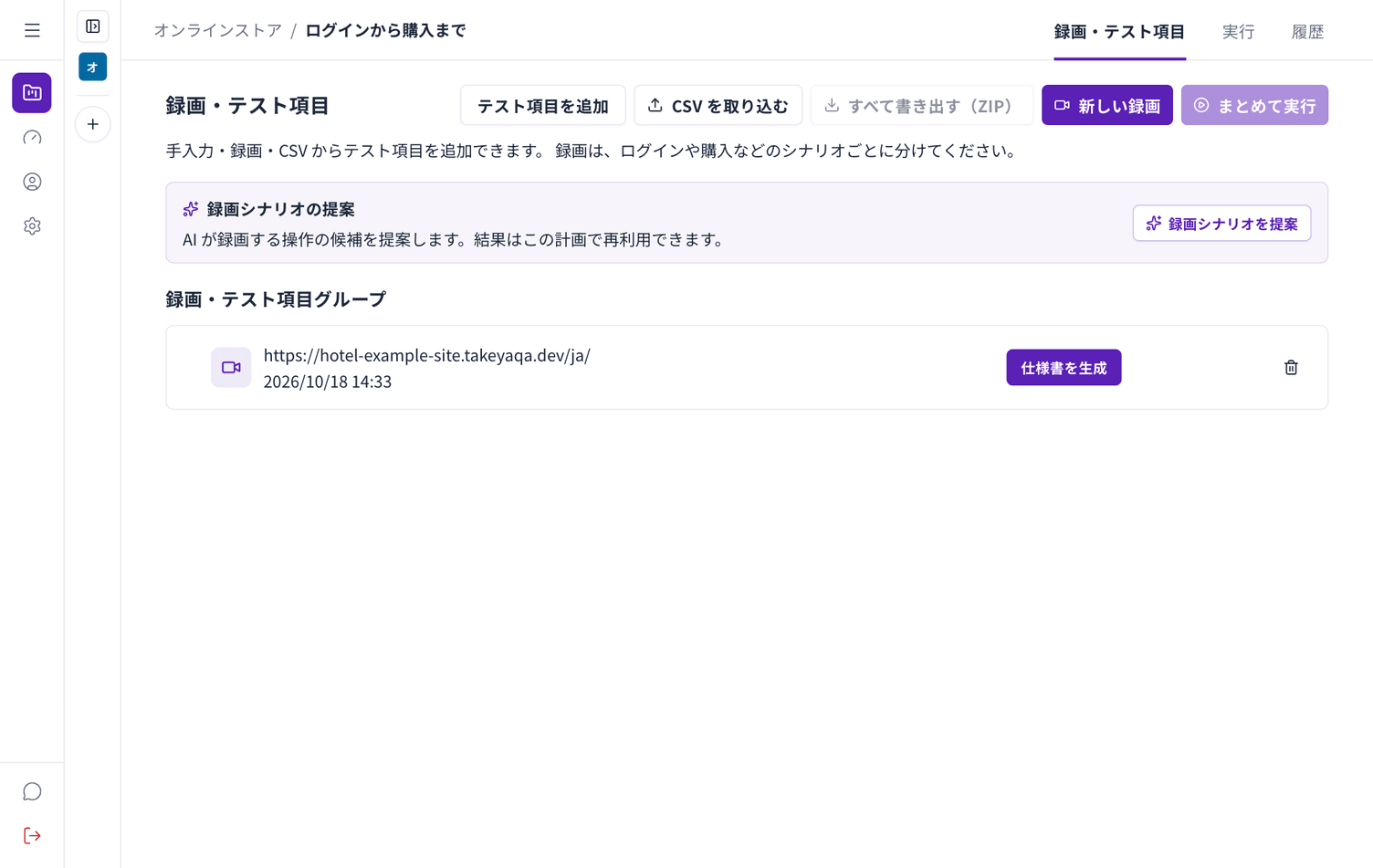
You move to the specification screen and generation starts as soon as it opens. It takes 1 to 2 minutes. Leave the screen open.
The result
Section titled “The result”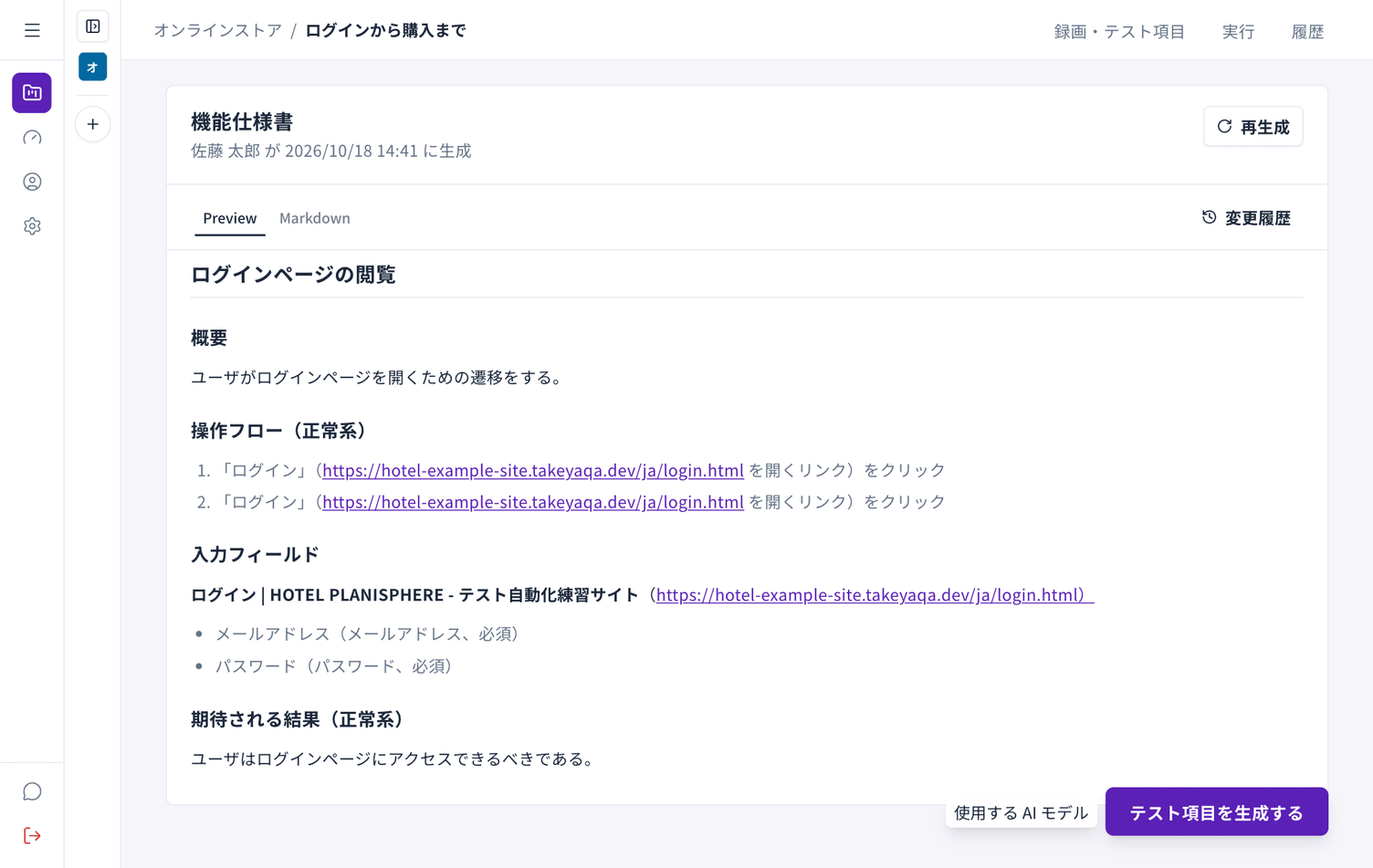
A specification contains:
| Section | Contents |
|---|---|
| Overview | What the screen is for |
| Steps (expected path) | The order of what was recorded |
| Input fields | The fields on the screen and whether they are required |
| Expected results | What should happen as a result |
Switching the view
Section titled “Switching the view”Switch between Preview and Markdown. Use Markdown when you want to paste it into another document.
Regenerating
Section titled “Regenerating”If the result is not what you expected, choose Regenerate. When the recording itself is thin, recording again is often faster.
History
Section titled “History”History shows earlier versions. You can restore one.
The AI model
Section titled “The AI model”There is an AI model selector at the bottom of the screen. It applies to regenerating and to generating test cases. The default is usually fine.
If it fails
Section titled “If it fails”If you see “Could not generate the specification”, choose Retry. If it keeps failing, the recording may not contain enough. Choose Record again.